Industrial Keyboard – On-screen keyboard for rugged Android devices
Fast, reliable data entry on rugged Android devices.
Industrial Keyboard is an on-screen keyboard for rugged Android devices from Zebra and Honeywell: big keys for gloves, a scanner trigger built in, F1–F24 for terminal emulation – and the whole keyboard configurable from your MDM. For Android 8.0 or later, without internet permission, free of charge under the MIT licence.
Industrial Keyboard is an independent product of ICT Baden and is not affiliated with Zebra Technologies or Honeywell.
fully developed and available


An Android keyboard with function keys (F1–F24) for rugged handhelds
In warehouses, logistics and production, people type on handhelds – often with gloves, often in terminal emulations that need function keys, and usually right before or after a scan. Industrial Keyboard is a keyboard for rugged handhelds built for exactly that work: as an Android input method it appears in every input field and is configured centrally for the whole fleet.
On-screen keyboard features
-
Made for gloves
Key height 70–160 % (120–140 % for gloves), forgiving touch targets, preview bubble above the finger, rollover typing and a high-contrast theme. A quick toggle switches to glove mode: keys at least 130 % high, long press only after 600 ms.
-
Function keys F1–F24
Fn tab with F1–F12, Shift for F13–F24, plus Esc, Ins, Del, Home, End, PgUp, PgDn and arrows; optionally an extra fixed F1–F12 row above the letters.
-
Ctrl, Win and Alt
Optionally as a row above the letters or with the function keys. The keys are sticky, so they also work with gloves; combinations such as
{CTRL+ALT+END}or{WIN+R}are available as macros for your own keys. -
Scanner built in
Scan tab with a large trigger pad: tap for one scan, hold for continuous scanning. Zebra DataWedge and Honeywell are detected automatically, other scanner apps are triggered by intent. Scans that only arrive as a broadcast can be typed by the keyboard itself – off by default and never into password fields.
-
Camera scanning
Devices without a scan engine read barcodes with the camera, right inside the keyboard: aiming frame or crosshair, barcode types, continuous scanning, zoom and torch. The camera also reads text (OCR), such as serial numbers, batch numbers or a date – on the device, with no network.
-
Scan data formatting, NFC
Prefix and suffix as macros, cut, replace (also with regular expressions), upper and lower case, GS1 fields with Tab, plus rules per barcode type, length or content. The keyboard types NFC tags into the field: the UID or the stored text.
-
The right keys for every field
Number fields open the numeric pad (phone or calculator order, PIN, date, time), e-mail and URL fields get @, / and .com, Enter shows the field’s action.
-
Custom layouts and macros
Your own keyboards such as OK / Skip / Damaged as extra tabs, defined in JSON – no app update needed. Macros such as
{TAB},{F13},OK{ENTER}or{SCAN}. -
App profiles and snippets
Per app, field type or field hint, a profile sets the start page, letter layout, number order, suggestions and scan suffix – for example 7-8-9 for quantity fields or Fn for the terminal emulation. Snippets come from the administrator or are entered by the users themselves; typed shortcuts such as
mfgoffer them as a suggestion. -
Languages and layouts
Keyboard languages for 40 languages with Latin script, switched with the globe key; the letter layout follows the language or is fixed to QWERTY, QWERTZ, AZERTY, Nordic or Spanish. Accents on long press, optional number row.
-
Word suggestions, dictation and emoji
Word suggestions and autocorrect from built-in dictionaries – no learning, nothing you type is stored. Plus a personal dictionary, dictation inside the keyboard and an emoji panel; each of them can be switched off in the configuration. Configurations written for 2.1 keep their previous behaviour.
-
Central configuration
Managed configuration from any EMM (SOTI MobiControl, Microsoft Intune, Workspace ONE), configuration file – on Zebra also in
/enterprise/usr– or StageNow broadcast; the settings can also be exported as a QR code and read with the camera on the next device. An admin password protects the settings and remote configuration; 5 wrong attempts lock it for 5 minutes. Error messages carry codes such asIK-0100. -
Named for screen readers
Keys, tabs, suggestions and dictation have names for TalkBack; text follows the system font size.
-
Private by design
No internet permission: the keyboard cannot send anything off the device. Nothing typed in other apps is stored or learned. Only the configuration, your own snippets and the personal dictionary are stored – all excluded from backups.
F13–F24 for terminal emulation (5250)
Android has key codes of its own above F12 only from Android 16 (API level 36) on. Industrial Keyboard sends F13–F24 as Shift+F1…F12 on every Android version – which needs no such key codes and is the mapping 5250 terminal emulators use. The terminal-emulation.json template configures the keyboard for terminal emulation: a function key row, an Esc key and a Host tab with F13–F24, Field exit and Reset.
More templates: warehouse-gloves.json with high contrast, 135 % keys, calculator pad and scan key, custom-layout.json with a picking tab, and classic-keys.json without a tab bar.
Switching from the device manufacturer’s keyboard: Industrial Keyboard as an alternative
For teams that use the device manufacturer’s keyboard or a commercial on-screen keyboard for industrial devices on rugged Android devices today and want one that also runs on devices from other vendors. Industrial Keyboard does the same job – an input method for rugged Android devices with function keys, a scan key and central configuration – and is free of charge under the MIT licence, with no licence server and no device binding.
- Runs on any Android device with Android 8.0 or later; soft trigger for Zebra DataWedge and Honeywell, other scanner apps via intent.
- F1–F24 (F13–F24 sent as Shift+F1…F12), big keys for gloves, custom layouts and macros in JSON.
- Configuration as a managed configuration from any EMM, as a file or via StageNow; on Zebra devices an MX profile makes it the default keyboard.
- No internet permission; nothing typed in other apps is stored or learned.
Honestly, for anyone switching: Industrial Keyboard does not import the configuration of other keyboard apps – layouts and settings are set up again in JSON. Word suggestions and autocorrect come from fixed, built-in word lists and do not learn; there is no swipe typing.
System requirements
- Operating system
- Android 8.0 or later
- Scanner
- soft trigger for Zebra DataWedge and Honeywell, other scanner apps via intent; with the camera on devices without a scan engine
- Permissions
- vibration, camera, microphone and NFC – no internet permission
- Distribution
- Google Play; APK via MDM or adb
- Language
- English and German; Spanish, French and Chinese machine-translated
Limits, honestly
- The Honeywell trigger follows the vendor documentation and has not been tested on a Honeywell device yet.
- Spanish, French and Chinese are machine translations and have not yet been proofread by native speakers; key labels are not translated.
- Text recognition (OCR) and NFC are new and have not yet been tried with real labels and tags on a device; OCR reads Latin script only and needs good light and sharp print.
- Camera scanning reads one code per tap and has no batch or multi-code mode; a scan engine is faster and also works in the dark.
- Ctrl, Win and Alt are sent as ordinary key events; they have not yet been tried with a remote desktop app on a device.
- Word suggestions and autocorrect use fixed built-in word lists: they do not learn names or words you type often, and technical terms are often missing. There is no swipe typing.
- Dictation needs a speech recogniser on the device; devices without Google services usually have none. If the device does not recognise speech itself, its speech service may process the audio online.
- TalkBack support is checked by automated tests but has not yet been tried by ear on a device and has not been audited.
- Configurations from 2.1 keep their defaults but not the look: key sizes and design are new since 2.2, and devices without a scan engine now use the camera for scanning.
- The admin password protects the settings and remote configuration but is not a device lock: whoever can uninstall the app or clear its data gets the defaults.
What Industrial Keyboard looks like
The screenshots are rendered from the real keyboard code.
-
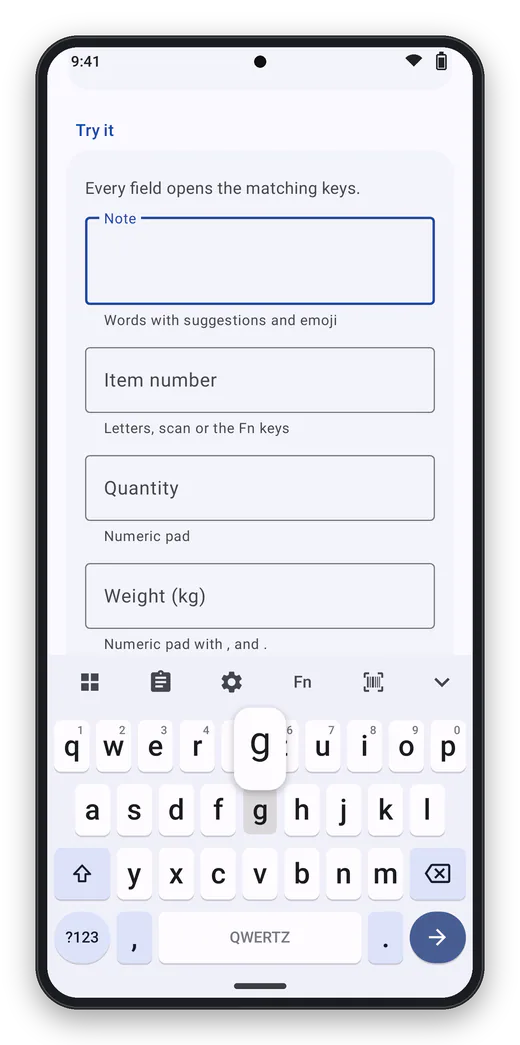
Letters Key preview above the finger, above it the toolbar with tiles, clipboard, settings, Fn and scan. -
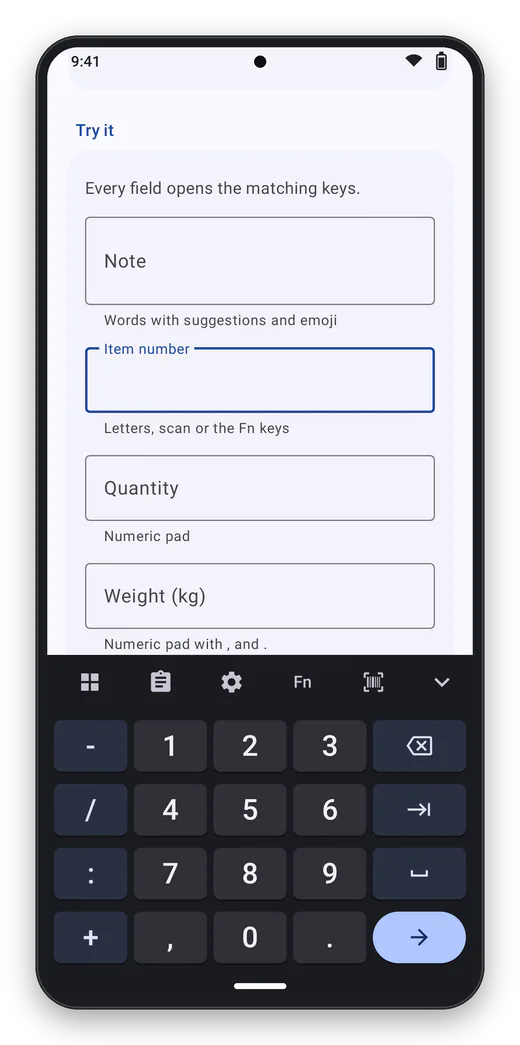
Numeric pad Opens by itself in number fields. -
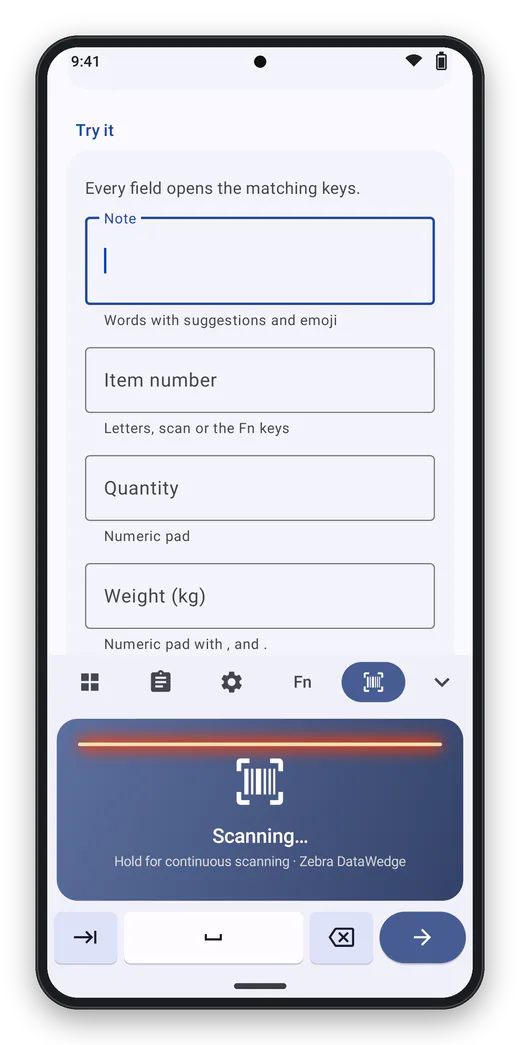
Scan tab Tap to scan, hold for continuous scanning. -
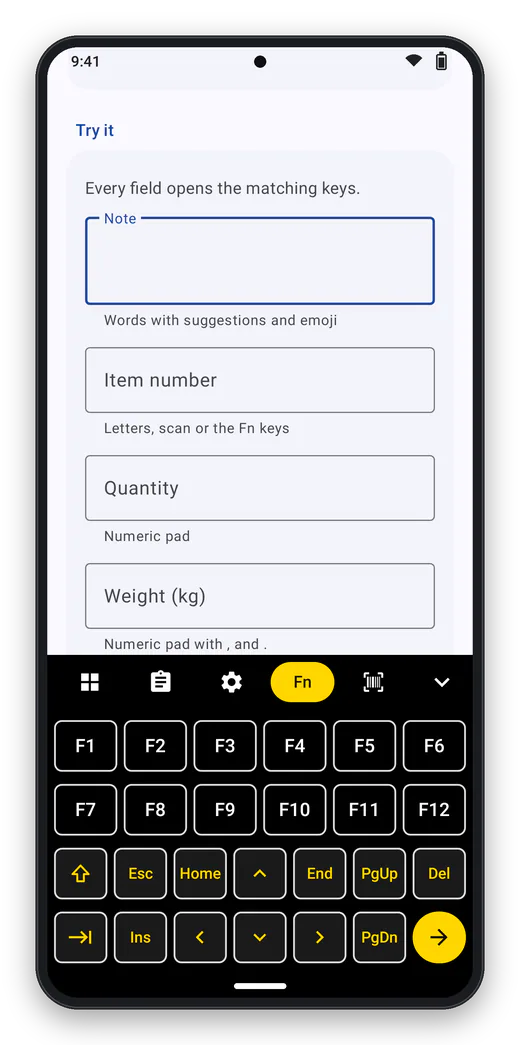
Function keys F1–F24, Esc, Ins, Del and arrow keys – for terminal emulators, for example. -
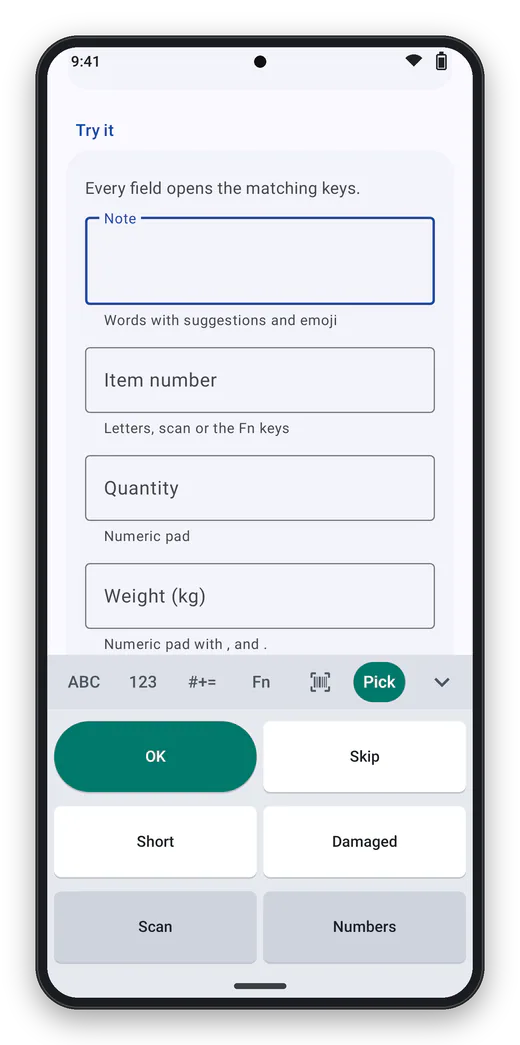
Custom layouts Your own keys as an extra tab, defined in the configuration – no app update needed. -
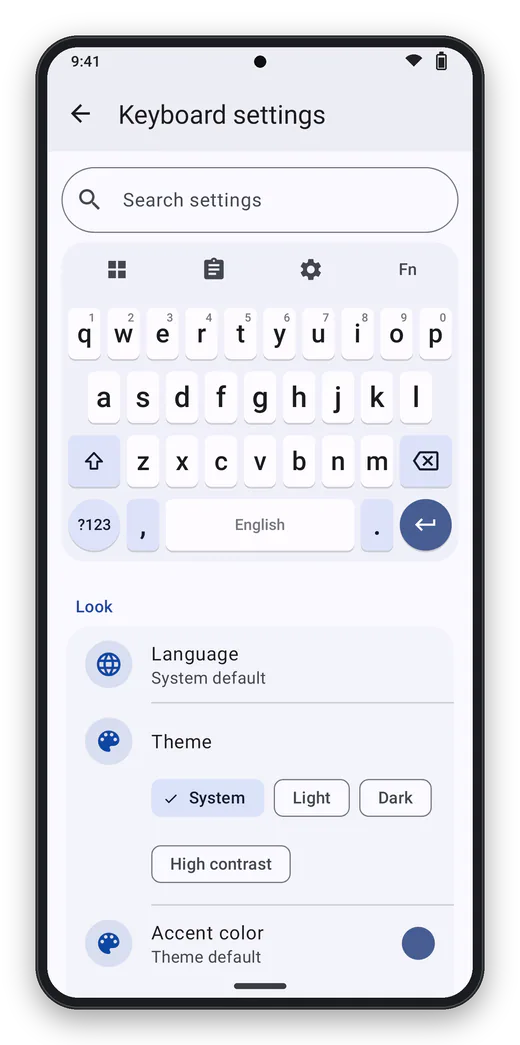
Settings With search and live preview, password protected.
Frequently asked questions
Is there an Android keyboard with F1–F24 function keys for rugged devices?
Yes, Industrial Keyboard: the Fn tab shows F1–F12, Shift adds F13–F24, plus Esc, Ins, Del, Home, End, PgUp, PgDn and the arrows. To keep F1–F12 always visible, switch on the function key row above the letters.
Is there an Android keyboard with F13–F24 for terminal emulation?
Yes. Shift turns the top rows into F13–F24, which Industrial Keyboard sends as Shift+F1…F12 on every Android version – the mapping 5250 terminal emulators expect; key codes of their own for F13–F24 only exist from Android 16 on.
Which Android keyboard works well with gloves?
A glove-friendly keyboard needs big keys and forgiving touch targets. Industrial Keyboard’s key height goes from 70 to 160 %, with 120–140 % recommended for gloves, plus a preview above the finger and a high-contrast theme.
Can the keyboard trigger the barcode scanner?
Yes. The scan tab and the optional scan key pull the soft trigger: Zebra DataWedge and Honeywell are detected automatically, other scanner apps can be triggered by intent.
Can I configure the keyboard through my MDM?
Yes, as a managed configuration (key config_json) in SOTI MobiControl, Microsoft Intune or Workspace ONE, as a configuration file or by StageNow broadcast. On Zebra devices an MX profile (UI Manager) makes it the default keyboard.
Does the keyboard store or send what I type?
No. Industrial Keyboard has no internet permission and cannot send anything off the device. What is typed in other apps is neither stored nor learned; word suggestions come from built-in word lists. Only the configuration, the admin password as a salted hash, your own snippets and the personal dictionary are stored.
Why does the keyboard need the camera, the microphone and NFC?
The camera reads barcodes and text on devices without a scan engine, the microphone is for dictation, and NFC types tags into the field. Android asks for camera and microphone the first time. Pictures are processed on the device and not stored; during dictation the audio goes to the device’s speech recognition. Dictation and NFC can be switched off in the configuration, and so can camera scanning.
Can the keyboard read barcodes without a scan engine?
Yes. If the device has no scan engine, Industrial Keyboard reads barcodes with the camera, right inside the keyboard – with an aiming frame or crosshair, selectable barcode types, continuous scanning, zoom and torch. A scan engine is faster and also works in the dark.
Is Industrial Keyboard free?
Yes, free of charge under the MIT licence, with no ads and no in-app purchases. Support with agreed response times is available with a support contract. The app is available on Google Play.
Is there a free alternative to the manufacturer’s keyboard on rugged Android devices?
Yes: Industrial Keyboard is an on-screen keyboard for rugged Android devices, free of charge under the MIT licence, with no ads and no in-app purchases. It offers F1–F24, a scan key for DataWedge and Honeywell, big keys for gloves and configuration through your MDM – and it also runs on devices from other vendors.
Industrial Keyboard is an independent product of ICT Baden and is not affiliated with Zebra Technologies or Honeywell. Zebra, DataWedge and StageNow are trademarks of Zebra Technologies, Honeywell is a trademark of Honeywell International; Android, SOTI MobiControl, Microsoft Intune and Workspace ONE are trademarks of their respective owners. They are named only to describe compatibility.
Contact
Interested in Industrial Keyboard?
Tell us what you would like to use the product for – we will get back to you personally.
Seboldstraße 9, 76227 Karlsruhe, Germany · Directions (PDF, German)